

AI lets me move straight into making something real, then learn through refinement rather than long, abstract discovery phases.
Instead of spending weeks on ideation, I create a working concept almost immediately and shape it with the team until it earns the right to be polished and shipped.
The goal is still the same as classic lean UX: reduce risk, learn quickly, and build the right thing. The difference is that AI makes it much cheaper and faster to start.
1. Frame the problem
AI plays a practical role here by helping the team align quickly around what is known, what is assumed. I use AI to help the team align on what we actually know, what we are assuming, and what is still unclear.
For example, if I have research notes, support tickets, analytics, and stakeholder comments, I will drop them into an AI tool and ask it to:
- Pull out the main themes
- Combine different viewpoints into a neutral summary
- Rewrite vague problem statements into something concrete
- Highlight assumptions or contradictions
On one payments project, I used AI to summarise weeks of support tickets into three clear themes: confusion about fees and timing before sending, friction during the flow, and anxiety about where the money was after it was sent. That gave us a simple starting point instead of dozens of scattered complaints.
At a minimum, I always try to answer four questions:
- Who is this for?
- What problem are we solving?
- Why does it matter to the user and the business?
- What constraints do we need to respect?
If I cannot explain the problem simply, AI will not help me solve it.
2. Map the journey
Once the problem is clear, I use AI to create a first pass at the journey or flow.
For example, I might write:
“Create a journey map for a small business owner sending their first international payment. Include decision points, compliance steps, and emotional states.”
Using tools like the Figma MCP server, I can connect AI agents directly to FigJam and generate a rough journey or flow. I then bring that into a workshop and refine it with the team.
https://help.figma.com/hc/en-us/articles/37883260397975-Create-FigJam-diagrams-with-Claude
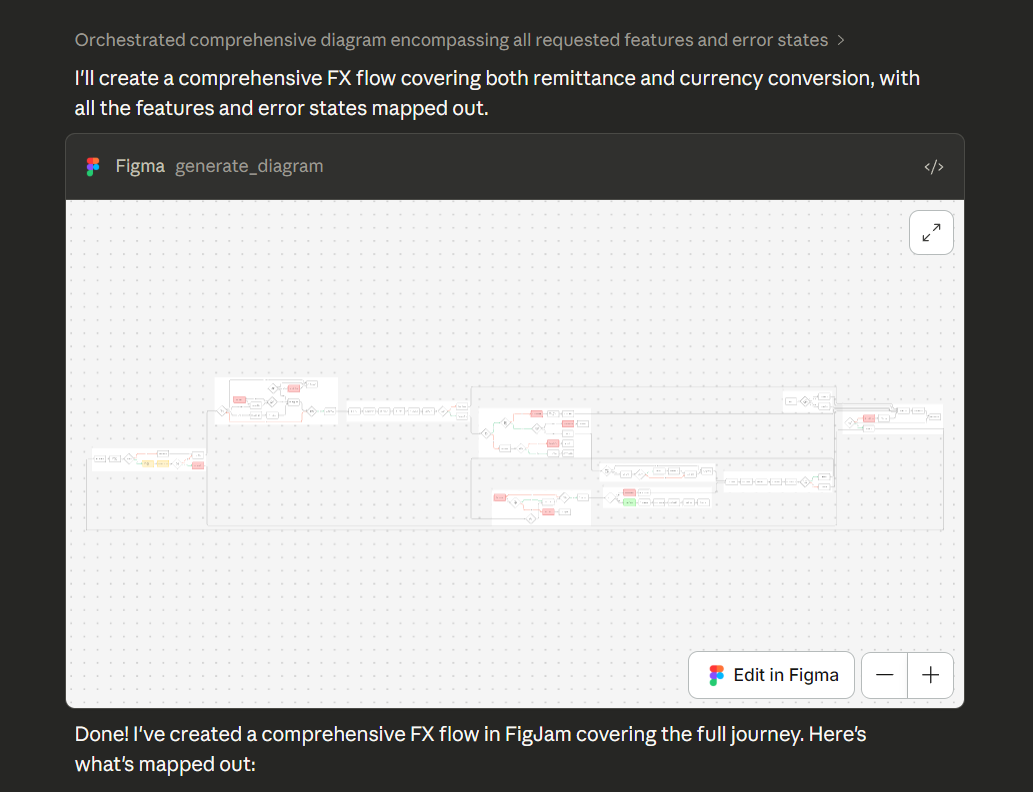
On an FX project, I generated an initial journey map in minutes, then spent the real time discussing it with engineers and compliance. The AI version was not perfect, but it gave us something concrete to react to.
3. Generate a starting solution
Next, I use AI to draft a working prototype from the problem statement. I treat this as a hypothesis, not a final design.
For example, I might prompt:
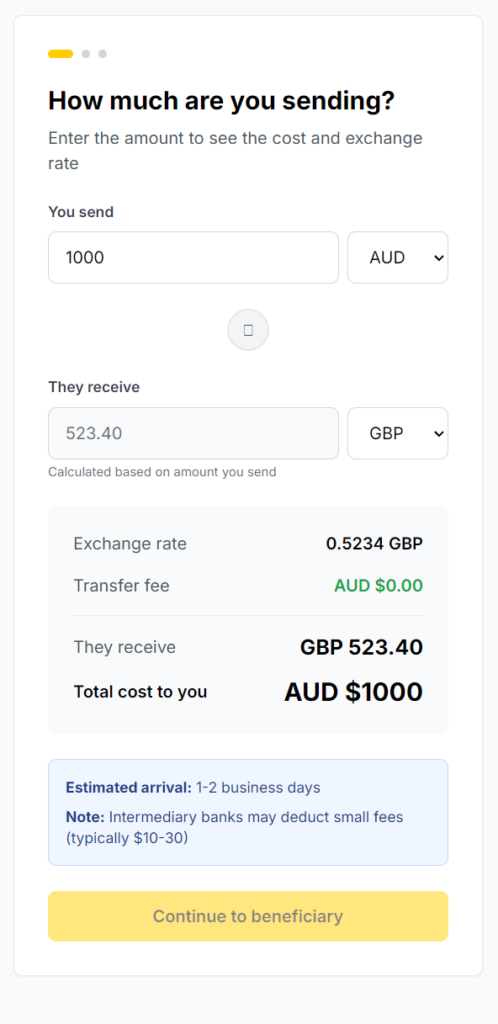
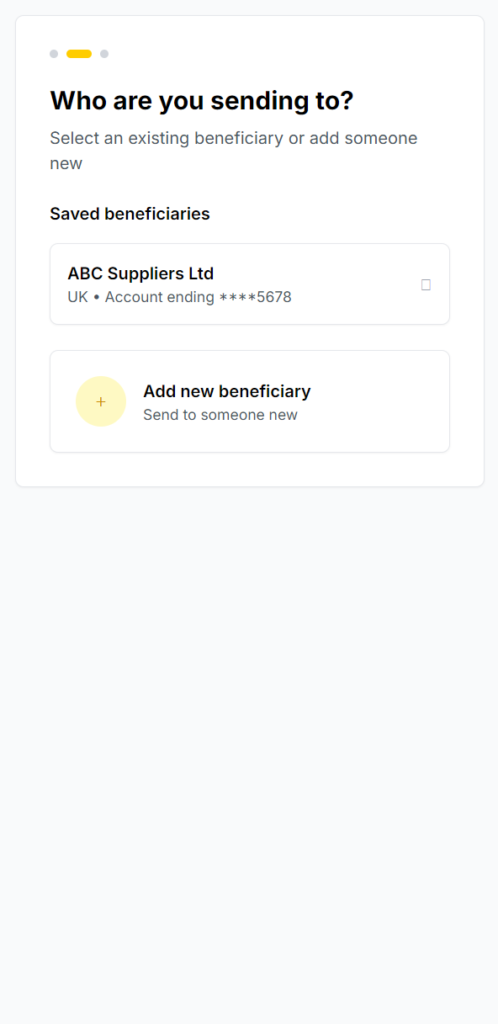
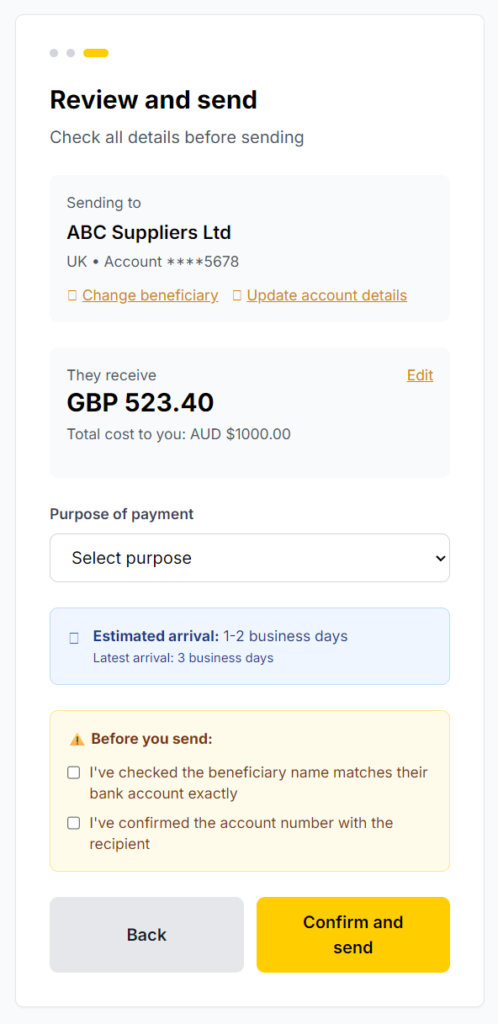
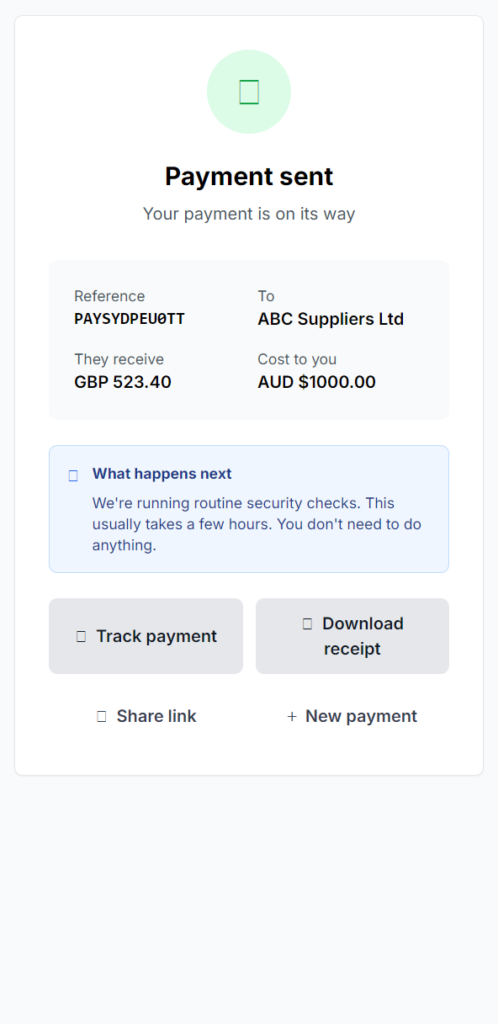
“Create a simple mobile flow for sending an international payment, including payee entry, amount, FX rate, fees, and confirmation.”
Tools like Claude are very good at producing interactive prototypes that I can share with the team.
If someone suggests a completely different approach, I just feed that idea into the AI as well and generate an alternative. This replaces long whiteboard debates with quick, comparable concepts.
AI does not decide the solution. It just helps me get to something testable much faster.
4. Refine with the team
I then review the prototype with engineers, SMEs, product managers, and stakeholders.
The discussion usually focuses on:
- What feels right or wrong for users
- What is missing or unnecessary
- Where the flow is confusing or overcomplicated
I use AI to help manage the feedback. For example, after a workshop I might paste in everyone’s comments and ask it to:
- Group the feedback into themes
- Rewrite conflicting comments into neutral problem statements
- Turn discussion points into clear change requests
This helps us move from opinions to decisions much faster.
5. Refine structure and interaction
Once I have the feedback, I feed it back into the AI to help refine the prototype.
For example:
“Combine steps 2 and 3. Users feel this part is repetitive.”
“This flow feels too complex. Suggest a simpler structure.”
AI makes iteration cheap. Instead of redrawing everything, I can explore several alternatives quickly and compare them.
https://help.figma.com/hc/en-us/articles/24004778051479-Make-interactions-with-AI
Typical changes at this stage include:
- Removing or merging unnecessary steps
- Clarifying the information hierarchy
- Improving transitions between states
- Making decisions more obvious
- Trying different interaction patterns where there is uncertainty
I keep the visuals simple at this stage. That keeps feedback focused on structure and behaviour rather than colours or spacing.
6. Validate quickly and selectively
Once the structure feels right, I run lightweight usability testing or structured internal reviews.
I focus on three things:
- Task success
- Comprehension
- Decision confidence
AI helps me analyse the results. For example, I might:
- Paste in session notes or transcripts
- Ask it to summarise the main issues
- Identify recurring patterns
- Map problems back to our original assumptions
This helps me prioritise what to fix in the next iteration.
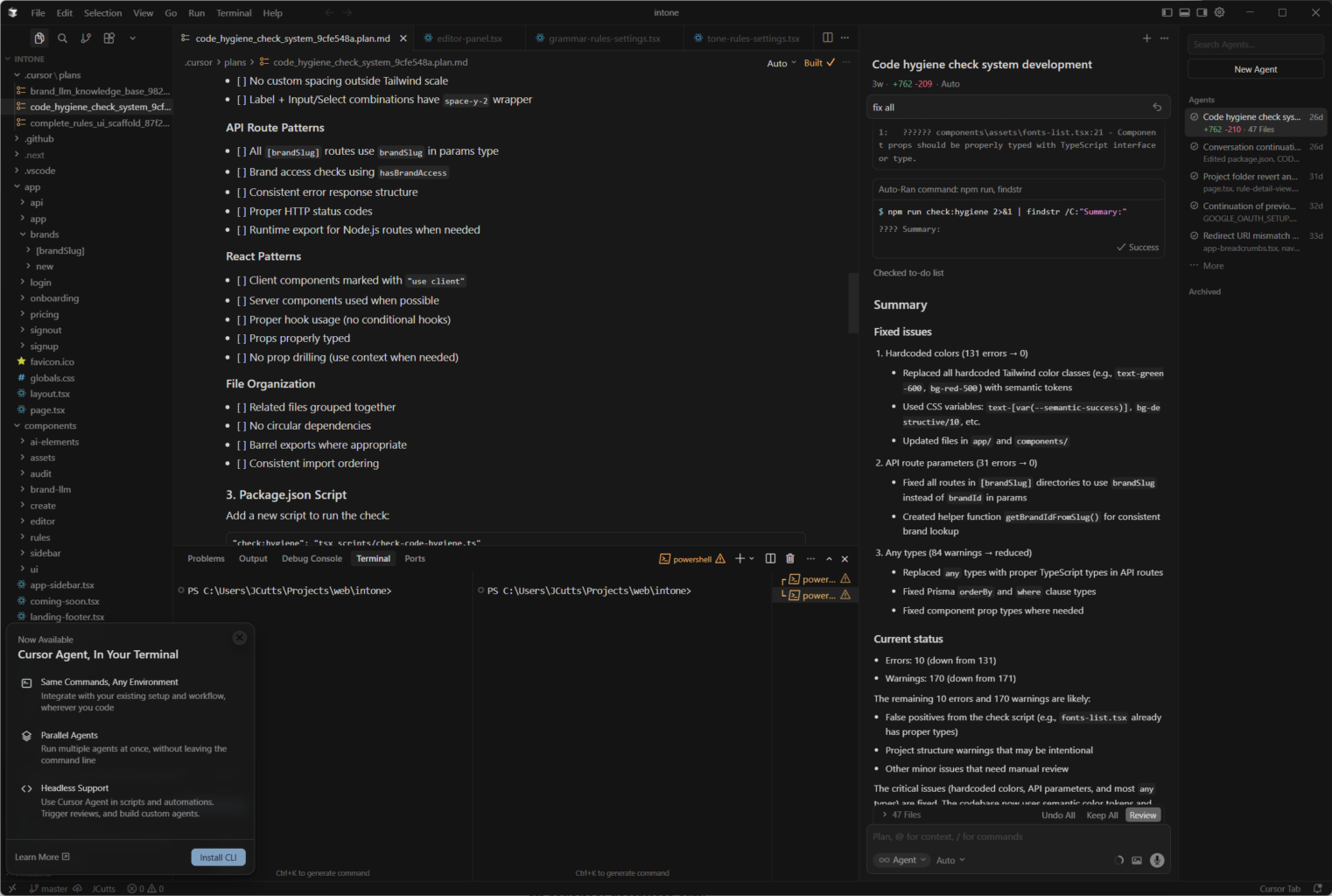
In some cases, I prototype directly in the codebase using tools like Cursor. That allows me to test the real interaction rather than a static mock.
7. Apply the design system and ship
At the final stage it is becoming more common for me to use AI to work directly with the product code and design system.
For example, I might:
- Ask AI to show me how a specific component is implemented
- Modify a component or create a new state in Cursor
- Prototype edge cases using real components
- Hand engineers a working example instead of a static spec
AI can also:
- Answer questions about component usage
- Spot missing states or inconsistencies
- Generate QA checklists
On smaller features, the entire loop can happen in real code. I move from idea to prototype to validated interaction inside the product itself. That removes a lot of translation loss between design and engineering.
Framelink MCP for Figma https://github.com/GLips/Figma-Context-MCP
Give Cursor and other AI-powered coding tools access to your Figma files with this Model Context Protocol server.
When Cursor has access to Figma design data, it's way better at one-shotting designs accurately than alternative approaches like pasting screenshots.
In practice, this approach means I spend less time on abstract artefacts and more time shaping real interactions. AI handles the heavy lifting around synthesis, generation, and iteration, while I focus on judgement, clarity, and alignment.

No Comments.